[Help Request] Installing Tahoe on a working Sequoia Ryzentosh

jtcs95

New member
AMD OS X Member
Mar 15, 2026
4
1
1
Portugal
CPU:
7800x3d
Hello, so I have a perfectly working Sequoia build. But I have tried multiples times to install Tahoe with no success. It either bootloop on install (right after apple logo appears) or gets stuck on apple with no progress bar. (I have installed directly from Mac no success, I have made a bootable usb, no success)
I have a 7800x3d cpu, GPU AMD 6950 XT, x870e tomahawk msi, 32gb ram ddr5, no secure boot, 4g enabled...
I already have mapped USB... I am over a week trying to install.
So I decided to ask for some help of someone with more knowledge than I...

Thank you in advance
I attach my efi (I have windows too).
 

Attachments

  • Like
Reactions: jubarim
Tahoe requise a minimalist /EFI/OC/Kexts folder when being installed. As a lot of kexts can cause unnecessary issues if present when installing Tahoe. Your current Kexts folder contents are far from minimal, it should contain only the bare essentials for your system to boot.
  • Lilu.kext
  • VirtualSMC.kext
  • AppleMCEReporterDisabler.kext
  • LucyRTL8125Ethernet.kext
  • USBMap.kext
The simplest way to deal with this issue, as you have an existing Sequoia installation and working EFI, is to disable any non-essential kexts in your config.plist, until you have Tahoe installed and running on your system. This includes NootRX.kext, as this can be one of the main culprits when issues arise during the installation of Tahoe.

OpenCore Legacy Patcher (Dortania release) isn't supported in Tahoe yet. So the OCLP kexts and block entry should be set with a MaxKernel of 24.99.99 so they aren't injected in to Tahoe.


As you have a USBMap.kext, which I assume is working correctly and has been updated to work with Tahoe.
  • That being the case you don't need USBToolBox.kext or UTBDefault.kext in your setup.
  • If that is not the case then it won't work in Tahoe either.
  • You may need to enable the Kernel > Quirks > XhciPortLimit entry to have some working USB ports.

AppleALC.kext isn't natively supported in Tahoe. Before you can use this kext you need to configure your system to inject AppleHDA.kext, which Apple removed from macOS Tahoe. AppleALC.kext won't work without AppleHDA.kext being present and active in the system.

As you are using NootRX.kext you should not be using any DeviceProperties in your config.plist, as this is another way for the kext to behave poorly in macOS.
  1. Use a custom SSDT if the fake device ID is really necessary for your Broadcom WiFi card.
  2. For your Realtek Audio codec use alcid=11 boot argument in place of the DeviceProperties entry.

Try the EFI-v1 folder on a spare USB pen drive, see if this gets your system to boot Tahoe. WiFi & BT won't be working, neither will OCLP, your RX 6950XT dGPU won't have GPU acceleration, until NootRX.kext has the MaxKernel 24.99.99 entry removed.
 

Attachments

  • Like
Reactions: jtcs95
Thanks I could boot installer thanks!
Can i get any direction on how to make Bluetooth, wifi and audio to work? I have installed ocpl 3.1.7 patched, but as soon as i enable those kexts i cant boot again to mac...
 
Is this the MSI motherboard you are using?


That motherboard has a USB Audio so you shouldn't need any kexts to get it working. The kexts that Apple provide should work with the USB device. That assumes you have created a working USBMap.kext for your system, which activates the Audio USB port with the correct Connector Type - (255) Internal.

Neither the Builtin WiFi or Bluetooth that comes with your MSI board will work in macOS, as they are Qualcomm (NCM865) WiFi & BlueTooth modules.

Best thing would be to disable the Qualcomm devices in the Bios and use a compatible Broadcom or Intel WiFi/BT card through a PCIe adapter & motherboard USB2 header port.

The Alternative is to physically remove the Qualcomm card and replace it with a compatible M.2 Broadcom or Intel WiFi/BT card. While this is the neater of the two options it is also the hardest to accomplish, now you have the motherboard installed and setup in your PC case. As to physically remove the Qualcomm card you would need to remove the LED shroud that sits over the rear ports. The screws for which are usually found on the underside of the motherboard.
 
Is this the MSI motherboard you are using?


That motherboard has a USB Audio so you shouldn't need any kexts to get it working. The kexts that Apple provide should work with the USB device. That assumes you have created a working USBMap.kext for your system, which activates the Audio USB port with the correct Connector Type - (255) Internal.

Neither the Builtin WiFi or Bluetooth that comes with your MSI board will work in macOS, as they are Qualcomm (NCM865) WiFi & BlueTooth modules.

Best thing would be to disable the Qualcomm devices in the Bios and use a compatible Broadcom or Intel WiFi/BT card through a PCIe adapter & motherboard USB2 header port.

The Alternative is to physically remove the Qualcomm card and replace it with a compatible M.2 Broadcom or Intel WiFi/BT card. While this is the neater of the two options it is also the hardest to accomplish, now you have the motherboard installed and setup in your PC case. As to physically remove the Qualcomm card you would need to remove the LED shroud that sits over the rear ports. The screws for which are usually found on the underside of the motherboard.
I have added usb Bluetooth port, i will check on audio (might have missed that port somehow).
About wifi, i have the Ax210 Intel (yes, i have replaced it). Is it compatible?
I guess i can live without it.
 
Yes, the Intel AX210NGW M.2 card is compatible with macOS, as long as you use the right kexts and application. There are some limitations when using an Intel WiFi/BT card, but aren't there always.

For the WiFi module you need to add Itlwm.kext to your /EFI/OC/Kexts folder with a corresponding entry in the config.plist. You then need to download and install the Heliport application in macOS. As the Intel WiFi module doesn’t work with the builtin Apple WiFi app when using Itlwm.kext. It is seen as an additional Ethernet interface, not as a WiFi interface.


For the Bluetooth you need these three kexts, in this order in your config.plist.
  1. IntelBluetoothFirmware.kext
  2. IntelBTPatcher.kext
  3. BlueToolFixup.kext
Plus you need to add the following entries to the NVRAM Add & Delete sub-sections in your config.plist.

Bluetooth NVRAM entries.png viewed in Corpnewt's ProperTree plist editor

Plus the Bluetooth USB port being active and set with the correct Connector Type in your USB configuration.
 

Attachments

Tahoe requise a minimalist /EFI/OC/Kexts folder when being installed. As a lot of kexts can cause unnecessary issues if present when installing Tahoe. Your current Kexts folder contents are far from minimal, it should contain only the bare essentials for your system to boot.
  • Lilu.kext
  • VirtualSMC.kext
  • AppleMCEReporterDisabler.kext
  • LucyRTL8125Ethernet.kext
  • USBMap.kext
The simplest way to deal with this issue, as you have an existing Sequoia installation and working EFI, is to disable any non-essential kexts in your config.plist, until you have Tahoe installed and running on your system. This includes NootRX.kext, as this can be one of the main culprits when issues arise during the installation of Tahoe.

OpenCore Legacy Patcher (Dortania release) isn't supported in Tahoe yet. So the OCLP kexts and block entry should be set with a MaxKernel of 24.99.99 so they aren't injected in to Tahoe.


As you have a USBMap.kext, which I assume is working correctly and has been updated to work with Tahoe.
  • That being the case you don't need USBToolBox.kext or UTBDefault.kext in your setup.
  • If that is not the case then it won't work in Tahoe either.
  • You may need to enable the Kernel > Quirks > XhciPortLimit entry to have some working USB ports.

AppleALC.kext isn't natively supported in Tahoe. Before you can use this kext you need to configure your system to inject AppleHDA.kext, which Apple removed from macOS Tahoe. AppleALC.kext won't work without AppleHDA.kext being present and active in the system.

As you are using NootRX.kext you should not be using any DeviceProperties in your config.plist, as this is another way for the kext to behave poorly in macOS.
  1. Use a custom SSDT if the fake device ID is really necessary for your Broadcom WiFi card.
  2. For your Realtek Audio codec use alcid=11 boot argument in place of the DeviceProperties entry.

Try the EFI-v1 folder on a spare USB pen drive, see if this gets your system to boot Tahoe. WiFi & BT won't be working, neither will OCLP, your RX 6950XT dGPU won't have GPU acceleration, until NootRX.kext has the MaxKernel 24.99.99 entry removed.

Sorry for getting in the middle of this thread, but I have the same problem as jtcs95.

I have a similar Ryzentosh setup, with a working Sequoia install.

I tried installing Tahoe multiple times, using OTA or a new boot pendrive with Tahoe 26.5.1. None worked.

Inspired in your instructions, I tried to create a minimal kext build, but it didn't work either. After enabling logs, I can see the a lot of messages and after sometime the letters get scrambled and the crossed apple logo appears. Recording a video I cannot see clear errors (I attached it).

Can you please help me with that Edhawk? Thanks a lot!

My setup:
  • Gigabyte B650M Aorus PRO AX (rev. 1.0) - bios F22b
  • AMD Ryzen 9 7900X 12-core 24-thread processor
  • Radeon RX 6800XT GPU
  • 32GB (2 x 16GB modules)
  • Fenvi 919 PCI-Express Wifi/BT module
 

Attachments

On the beginning scree the main error relates to SMCRadeonSensors.kext. I would remove this from the OC setup, as it is definitely not essential for your system to boot.

I would remove any Sensor related kexts from the OC setup, as again none of these are essential for the system to boot Tahoe. They are more likely to cause unnecessary issues than they are to help.

The final screen where the verbose text is garbled and the prohibited sign is shown, usually means the USB port that contains the macOS Installation has been dropped. Initially I would recommend that you try a different USB port, preferably a USB2.0 port.

The more permanent fix is to update your USBPorts.kext, using Hackintool version 4.1.4 or newer, so it is compatible with Tahoe. As it stands your USBPorts.kext isn't compatible with Tahoe, as it lacks the entries with the new port numbering and naming convention Apple introduced with Tahoe.

I would recommend that you switch to using Corpnewt's USBMap script in place of Hackintool, as the later isn't AMD friendly, when configuring your USB ports.


I would also recommend you use Corpnewt's SSDTime script to generate custom SSDT's for your system. Using the generic SSDT's or ones you have lifted from someone else isn't always the best course.


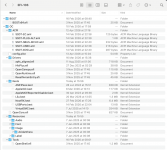
Below is a screenshot showing the contents of your EFI folder as posted above.

Screenshot 2026-06-09 at 15.34.26.png
I would draw you attention to the following:
  1. Apple Folder, this is not required and is only likely to cause issues, so I would remove it.
  2. You have an SSDT-EC-USBX-DESKTOP.aml, SSDT-EC.aml and an SSDT-USBX.aml, you should not have the first SSDT alongside the other two. All three should never be present and enabled in your OC setup.
    1. The SSDT-EC-USBX_DESKTOP.aml table is a generic SSDT that tries to cover many Intel and AMD systems. Using this is fine when you are first installing macOS, but it should not still be in use when you have a well established Hack. I would remove this SSDT and leave the other two in place.
    2. This is where Corpnewt's SSDTTime comes in to its own. It uses your system ACPI tables to generate custom SSDT's for your system. These Custom SSDT's are much better than the generic SSDT's, in that they load faster and only contain the information required for your system.
  3. The drivers in your Drivers folder are from a couple of different dates/times, which to my mind means they are not all from the same OC release (4th March & 20th March). These plus the BOOTx64.efi, OpenCore.efi, config.plist and any Tools retained in the setup should all be from the same release/version.
    1. The exceptions to this are HfsPlus.efi and apfs_aligned.efi, which aren't released with OpenCore.
  4. Your Kexts folder contains too many kexts, which are likely to cause unnecessary issues when installing macOS Tahoe. The non-essential kexts should be removed temporarily, until Tahoe is installed and you are on the new Desktop.
    1. neither AppleALC.kext nor WhateverGreen.kext work in Tahoe.
    2. Apple have removed AppleHDA.kext from Tahoe, which AppleALC.kext relies on to work. So AppleHDA.kext needs to be added back to Tahoe, once you have it installed. A process has been created that enables this to be undertaken so your builtin Realtek audio will work. Your motherboard manual and spec page don't confirm which Audio Codec is used. I assume you know which codec is used and if it requires the fix or if like my Asus B650E board uses a USB audio, in which case you won't need to do anything other than include the audio port in your new USBMap.kext.
    3. You need to be using a forked version 1.7.1d7 of WhateverGreen.kext when running macOS Tahoe. It contains some fixes for the new OS, which the Acidanthera main kext lacks.
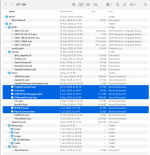
If I were creating your Tahoe EFI, it would look more like the image below.

Screenshot 2026-06-09 at 15.57.11.png Minimal Kexts folder, with BOOTx64, Drivers, Tools and OpenCore.efi all from the same release.

Only when I had completed the Tahoe installation would I add back the non-essential Kexts, as shown below.

Screenshot 2026-06-09 at 15.58.56.png

Hope this helps.
 
  • Love
Reactions: jubarim
On the beginning scree the main error relates to SMCRadeonSensors.kext. I would remove this from the OC setup, as it is definitely not essential for your system to boot.

I would remove any Sensor related kexts from the OC setup, as again none of these are essential for the system to boot Tahoe. They are more likely to cause unnecessary issues than they are to help.

The final screen where the verbose text is garbled and the prohibited sign is shown, usually means the USB port that contains the macOS Installation has been dropped. Initially I would recommend that you try a different USB port, preferably a USB2.0 port.

The more permanent fix is to update your USBPorts.kext, using Hackintool version 4.1.4 or newer, so it is compatible with Tahoe. As it stands your USBPorts.kext isn't compatible with Tahoe, as it lacks the entries with the new port numbering and naming convention Apple introduced with Tahoe.

I would recommend that you switch to using Corpnewt's USBMap script in place of Hackintool, as the later isn't AMD friendly, when configuring your USB ports.


I would also recommend you use Corpnewt's SSDTime script to generate custom SSDT's for your system. Using the generic SSDT's or ones you have lifted from someone else isn't always the best course.


Below is a screenshot showing the contents of your EFI folder as posted above.

View attachment 19397
I would draw you attention to the following:
  1. Apple Folder, this is not required and is only likely to cause issues, so I would remove it.
  2. You have an SSDT-EC-USBX-DESKTOP.aml, SSDT-EC.aml and an SSDT-USBX.aml, you should not have the first SSDT alongside the other two. All three should never be present and enabled in your OC setup.
    1. The SSDT-EC-USBX_DESKTOP.aml table is a generic SSDT that tries to cover many Intel and AMD systems. Using this is fine when you are first installing macOS, but it should not still be in use when you have a well established Hack. I would remove this SSDT and leave the other two in place.
    2. This is where Corpnewt's SSDTTime comes in to its own. It uses your system ACPI tables to generate custom SSDT's for your system. These Custom SSDT's are much better than the generic SSDT's, in that they load faster and only contain the information required for your system.
  3. The drivers in your Drivers folder are from a couple of different dates/times, which to my mind means they are not all from the same OC release (4th March & 20th March). These plus the BOOTx64.efi, OpenCore.efi, config.plist and any Tools retained in the setup should all be from the same release/version.
    1. The exceptions to this are HfsPlus.efi and apfs_aligned.efi, which aren't released with OpenCore.
  4. Your Kexts folder contains too many kexts, which are likely to cause unnecessary issues when installing macOS Tahoe. The non-essential kexts should be removed temporarily, until Tahoe is installed and you are on the new Desktop.
    1. neither AppleALC.kext nor WhateverGreen.kext work in Tahoe.
    2. Apple have removed AppleHDA.kext from Tahoe, which AppleALC.kext relies on to work. So AppleHDA.kext needs to be added back to Tahoe, once you have it installed. A process has been created that enables this to be undertaken so your builtin Realtek audio will work. Your motherboard manual and spec page don't confirm which Audio Codec is used. I assume you know which codec is used and if it requires the fix or if like my Asus B650E board uses a USB audio, in which case you won't need to do anything other than include the audio port in your new USBMap.kext.
    3. You need to be using a forked version 1.7.1d7 of WhateverGreen.kext when running macOS Tahoe. It contains some fixes for the new OS, which the Acidanthera main kext lacks.
If I were creating your Tahoe EFI, it would look more like the image below.

View attachment 19398 Minimal Kexts folder, with BOOTx64, Drivers, Tools and OpenCore.efi all from the same release.

Only when I had completed the Tahoe installation would I add back the non-essential Kexts, as shown below.

View attachment 19399

Hope this helps.

thanks for all your help!

I did most of the simplification you told me and also changed the usb port to a 2.0 one as recommended.

The setup went fine, rebooted several times and the install macos option disappeared, so I assume it was installed correctly.

Now I'm facing another issue: black screen after the reboot - I was using a Display Port (black screen), so I changed to a hdmi cable (based on this), also black screen.

I also tried to revert whatevergreen, but no success with it either - I don't know where I saw it was incompatible with Tahoe...

Any ideas on how to init my Radeon 6800XT video? Thanks!
 
Attached is a copy of WhateverGreen.kext v1.7.1d7. This version of WEG supports macOS Tahoe.

Add this to your OC Kexts folder and config.plist, plus the agdpmod=pikera boot argument and see if that fixes the black screen issue.
 

Attachments

  • Like
Reactions: jubarim
Attached is a copy of WhateverGreen.kext v1.7.1d7. This version of WEG supports macOS Tahoe.

Add this to your OC Kexts folder and config.plist, plus the agdpmod=pikera boot argument and see if that fixes the black screen issue.
Thanks man!

Actually in a third reboot, suddenly it started working, without whatever green. But I added the 1.7.1.d7 version you provided and the video is working now on both hdmi and dport.

Now I need to figure out why cable network is not working...

I am using LucyRTL8125Ethernet (V1.2.3) but it doesn't work at all - I have not even tried the wifi because I know that one is also trouble.

Edit:
I also think Tahoe enabled FileVault :-( I don't think that's a good thing for hackintoshes, is it?
 
No, Tahoe enabling FileVault is not a good thing on a Hackintosh. But it is the default action of the installer, unfortunately.

1. How to prevent FileVault being enabled.
  1. What I have found is that if you don't sign in to your Apple iCloud account as part of the installation wizard, then an additional screen/tab is shown in the Tahoe installation wizard.
  2. This additional tab allows you to disable the FileVault option, so your macOS drive isn't encrypted.
  3. This is the easiest way to solve this issue. But if you are in a rush it is very easy to miss /skip past this tab/screen.
2. What to do if FileVault is enabled/ON.
  1. If you do end up with FileVault enabled, then the next best thing is to remain on the Tahoe desktop and not reboot the system, until the drive has been fully encrypted.
  2. Then go to System Settings > Privacy & Security > FileVault (second bottom) tab and TURN OFF Encryption.
  3. You have to wait again until the decryption is completed before rebooting the system.
3. If you Reboot your system when the FileVault encryption is in place
  1. Then you won't be able to sign in to your user account when you reach the Tahoe login screen. The correct password will not work, no matter how many times you provide it.
  2. In this case the best option is to reinstall Tahoe, including Erasing the macOS drive. So you remove the encryption from the drive.
  3. But make sure you take your time when going through the installation wizard, and use option 1 above to disable the FileVault encryption from occurring.
I don't know how many times I got caught by this FileVault issue before I learnt about the option not to enable FileVault.

Ethernet Controller:
  1. Some Ethernet controllers require VT-d to work in macOS Tahoe. Unfortunately AMD systems don't use or have the VT-d function as this is an Intel function.
  2. The AMD equivalent to VT-d is IOMMU, try disabling IOMMU in your BIOS and see if that gets the kext to work.
  3. You may end up having to use a USB to Ethernet adapter, adding a third-party PCIe Ethernet card or relying on the WiFi card for network & internet access.
  4. Which WiFi/BT card are you using?
You are using the latest version of the LucyRTL8125Ethernet.kext, if that doesn't work then none of the earlier releases will work in Tahoe. The kext developer added VT-d support to v1.2.0d5 and Tahoe support in v1.2.3.
 
  • Like
Reactions: jubarim
I am starting to think it was not worth the trouble of upgrading to Tahoe 🥲

I will try to remove FileVault next.

About Ethernet, yes, I tried the latest v1.2.3 version. Let me disable IOMMU in my BIOS to test it then.
 
Depending on the Revision of your B650M AORUS Pro AX motherboard you could have one of two WiFi/BT cards.

PCB Rev 1.0 has a Mediatek MT7922A22M WiFi/BT card, which isn't supported in macOS. There was some hope it would be, but that ended when the MacBook Neo was released with a custom Mediatek WiFi controller.

There has been some recent work on getting a few Mediatek WiFi/BT cards working in macOS, but I don't think yours was one of the three vendor/device ID's present in the kext (0x796114c3, 0x060814c3 & 0x792214c3). Laobamac is the Mediatek kext, app and Bluetooth firmware developer of the new kext if you are interested in following this up.


PCB Rev 1.1 has an Intel AX210 WiFi/BT card, which has support in macOS. WiFi support is provided via Itlwm.kext or Airportitlwm.kext. There are also kexts for the bluetooth to work, in macOS Tahoe and earlier.

 
🥹 Thanks for all the info!


My MB PCB is Rev 1.0, that's why I bought the Fenvi 919 PCI-Express Wifi/BT module.

It was working fine on Sequoia with OCLP. I of course removed OCLP before Tahoe upgrade. Maybe I can enable it somehow...
 
  AdBlock Detected
Sure, ad-blocking software does a great job at blocking ads, but it also blocks some useful and important features of our website. For the best possible site experience please take a moment to disable your AdBlocker.