ASUS ZenBook UM462D / UX462DA - Ryzen 5 3500U - Can macOS be installed?

sukhrobjonov

New member
AMD OS X Member
Jun 5, 2026
10
2
3
CPU:
Amd Ryzen 5 3500u with Radeon Vega Mobile Gfx (2.10 GHz)
Hello everyone!

I need help with installing macOS on my laptop. I have been trying for 3 days with AI assistance but keep getting different errors every time. I'm not sure if macOS can even be installed on this laptop at all.

My Laptop:
  • Model: ASUS ZenBook UX462DA (box says UM462D but Windows shows UX462DA)
  • CPU: AMD Ryzen 5 3500U with Radeon Vega Mobile Gfx
  • RAM: 8GB DDR4
  • SSD: 256GB NVMe
  • WiFi: Intel AX series
  • Touchscreen: Yes (10 touch points)

My questions:
1. Is it even possible to install macOS on this laptop?
2. Which version of macOS works best for this hardware?
3. Does anyone have a working EFI for ASUS UX462DA or similar Ryzen 5 3500U laptop?

What I tried:
  • OpenCore 1.0.7 with macOS Monterey 12.7.6
  • SMBIOS: iMac19,1
  • Always getting error: usr\standalone\OS.dmg.root_hash not found
  • The firmware keeps reporting different Board-IDs each boot (Mac-AA95B1DDAB278B95, Mac-63001698E7A34814)
  • Tried CleanNvram, ForceSecureBootScheme, different recovery files - nothing works

I am a beginner and would really appreciate any guidance or a working EFI to start from.

Thank you so much!
 
  1. Yes it is possible, but people have had mix results when running macOS on an AMD laptop.
  2. Any version from High Sierra up to and including Tahoe, should be possible with the correct EFI.
  3. No.
Your AMD laptop should be using a MacBookPro16,2 SMBIOS, not an iMac19,1 (desktop) SMBIOS.

Zip and post a copy of your OpenCore EFI and let us see what you are using, as without that we won't be able to suggest anything helpful.
 
  1. Yes it is possible, but people have had mix results when running macOS on an AMD laptop.
  2. Any version from High Sierra up to and including Tahoe, should be possible with the correct EFI.
  3. No.
Your AMD laptop should be using a MacBookPro16,2 SMBIOS, not an iMac19,1 (desktop) SMBIOS.

Zip and post a copy of your OpenCore EFI and let us see what you are using, as without that we won't be able to suggest anything helpful.
Thank you so much for your reply!

I have a few follow-up questions:

1. About USB Ethernet adapter:
Is it absolutely required during installation? Is there any way to install macOS without a USB Ethernet adapter?

2. About AMD Vega VRAM (512MB/1GB):
I checked my BIOS but I cannot find any option to increase VRAM for AMD Vega graphics. My laptop is ASUS UX462DA and the BIOS is very limited. Is there any alternative way to set this through OpenCore or a kext?

3. About my EFI situation:
I have been trying for 3 days and have made many different EFI configurations - I got confused and lost track of which one is correct. I am attaching my current EFI which I believe is the latest and most correct version.

Could you please help me build a proper EFI from scratch with a step-by-step tutorial? I am a beginner and really want to get this working.

My specs again:
  • Laptop: ASUS ZenBook UX462DA (box says UM462D)
  • CPU: AMD Ryzen 5 3500U
  • GPU: AMD Radeon Vega 8 (iGPU)
  • RAM: 8GB DDR4
  • WiFi: Intel AX series
  • Bootloader: OpenCore 1.0.7

Thank you for your patience!
 

Attachments

I am recommending that you use a USB to Ethernet adapter because your laptop doesn’t contain a Ethernet port. If you are using the macOS Recovery method to install Monterey you will have to download the full macOS installer (12+GB) as part of the installation. But your Intel WiFi card won’t work during the installation process. As the kexts required for the WiFi won’t be injected during the macOS install process.

The only way to get around not downloading the full installer as part of the install is to create an offline installer, which already contains all the necessary files (12+GB) for macOS.

The step-by-step tutorial is already available, i.e. the Dortania Ryzen guide. There are common features that both an Intel an AMD system require, which you need to read about and include when creating your OpenCore EFI and installation media.


There isn’t a specific guide for an AMD laptop, as it is not a commonly used computer for running macOS. Due to the limitations of the components used in these laptops.

If you can’t find a specific bios setting to increase the amount of RAM available to the AMD Vega IGPU, then it may not be worth installing macOS on that system. As a limitation to the IGPU, where it only has say 256mb available will prevent the GPU running with full graphics acceleration, and that is something that is essential for any system running macOS.

There may be a third-party tool that allows you to access some hidden features in the AMD Bios, I.e. ‘Smokeless_UMAF’, which may allow you to increase the amount of RAM allocated to the IGPU. But be very careful with this Bios Tool, don’t go changing things if you don’t know what they do. You could easily brick the system by changing the wrong Bios entry.


I will have a look at your EFI folder when I am next at my desk, which should be later today.
 
Try this revised EFI folder, see if it gets you any further towards installing macOS Monterey.

Post a photo of the Verbose text on the laptop's display, if the system kernel panics.
 

Attachments

Thank you so much for the revised EFI! I really appreciate your help.

I tried it but still getting the OS.dmg.root_hash error. I also noticed that AirportItlwm 2.3.0 in the EFI seems to be the Big Sur version, not Monterey. Could this be causing any issues?

Here is the verbose photo from the screen.

"Also, I checked AMD CBS → NBIO Common Options → GFX Configuration but there is no UMA Frame Buffer Size option available in my BIOS. Only Integrated Graphics Controller, UMA Above 4G, and NB Azalia options are shown."

I used the EFI folder directly from your zip (not the one inside __MACOSX folder).
 

Attachments

Last edited:
The screen image doesn’t tell us a lot, as it is so early in the boot process. It is often seen because the OC EFI is set incorrectly. I will have a look at the OpenCore logs and see what they show.

The wrong AirportItlwm kext would prevent the Intel WiFi from working, it wouldn’t necessarily be the cause of the kernel panic you are seeing. But changing it to the correct kext would be sensible.
 
Which NVMe (SSD) drive does your laptop use?

The second OC log shows an error message related to the AirportItlwm kext, but there are a few other errors that aren’t as clearly defined.

Switching to the Debug version of OpenCore along with using the debug versions of Lilu.kext & VirtualSMC.kext might give us a better idea of what is causing this kernel panic.

I will see what I can do when I am next at my desk.
 
Which NVMe (SSD) drive does your laptop use?

The second OC log shows an error message related to the AirportItlwm kext, but there are a few other errors that aren’t as clearly defined.

Switching to the Debug version of OpenCore along with using the debug versions of Lilu.kext & VirtualSMC.kext might give us a better idea of what is causing this kernel panic.

I will see what I can do when I am next at my desk.
"My NVMe SSD is: WDC PC SN520 SDAPNUW-256G-1102"
 

Attachments

  • photo_2026-06-07_17-53-42.jpg
    photo_2026-06-07_17-53-42.jpg
    89.8 KB · Views: 7
The Western Digital drive should be ok for use in macOS.

From the screen image above I am assuming you are looking to install macOS on a drive that already has Windows installed. If that is the case could you confirm my thoughts are correct. As that adds a couple of issues to an already complicated process.
 
The Western Digital drive should be ok for use in macOS.

From the screen image above I am assuming you are looking to install macOS on a drive that already has Windows installed. If that is the case could you confirm my thoughts are correct. As that adds a couple of issues to an already complicated process.
Yes, Windows 11 is currently installed on the SSD. I don't need Windows, I want to completely replace it with macOS. I am fine with wiping Windows entirely
 
Ok, that makes things easier.

You can erase the WD drive ans part of the process of installing macOS. If and when we get to that stage.
 
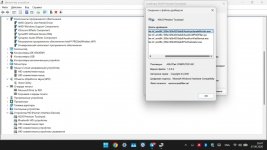
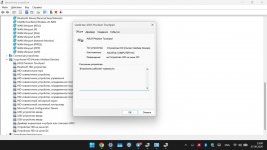
Can you look under the Device Manager > Trackpad > Properties and see what it says about the trackpad, specifically the manufacturer name. I think it is an Elan trackpad, but while you have access to Windows it would be good to confirm the maker.
 
Ok, that makes things easier.

You can erase the WD drive ans part of the process of installing macOS. If and when we get to that stage.
Understood, thank you! I will wait for your next update.
 
Can you look under the Device Manager > Trackpad > Properties and see what it says about the trackpad, specifically the manufacturer name. I think it is an Elan trackpad, but while you have access to Windows it would be good to confirm the maker.
The touchpad is ASUS Precision Touchpad, manufacturer: ASUSTek COMPUTER INC., connected via I2C bus (HID on I2C).
 

Attachments

  • photo_2026-06-07_18-48-11.jpg
    photo_2026-06-07_18-48-11.jpg
    96.9 KB · Views: 4
  • photo_2026-06-07_19-01-21.jpg
    photo_2026-06-07_19-01-21.jpg
    91.5 KB · Views: 5
Last edited:
Try this Debug EFI see what happens and assuming it will kernel panic, post a copy of the OC log that will be saved on the USB installer. As this should contain more useful information about what is causing the kernel panic.

Just rename the folder to EFI before using it.
 

Attachments

  • Like
Reactions: etorix
Try this Debug EFI see what happens and assuming it will kernel panic, post a copy of the OC log that will be saved on the USB installer. As this should contain more useful information about what is causing the kernel panic.

Just rename the folder to EFI before using it.
Good news! The Debug EFI worked and macOS Recovery loaded successfully! I have formatted the SSD to APFS. Now I just need a USB Ethernet adapter to connect to the internet for the installation. I will continue tomorrow. Thank you so much for your help!😊
 
  • Like
Reactions: Edhawk
Great news.

Best of luck with the rest of the installation.
 
Great news.

Best of luck with the rest of the installation.
Thank you so much for your help! I have successfully installed macOS Monterey. This is my very first time doing a Hackintosh.

Currently, it only boots into macOS when the USB flash drive is plugged in. If I unplug it, it shows 'Windows Restore'.


Sound not working
How i can disable verbose or debug mode pc start 10 minute

Since I'm a beginner, what are the next steps to properly configure everything? How do I make it boot without the USB and set up the graphics correctly? Thanks!
 

Attachments

  • photo_2026-06-08_18-32-51.jpg
    photo_2026-06-08_18-32-51.jpg
    308.5 KB · Views: 2
Last edited:
The next steps include but are not limited to the following:
  1. Copy your working EFI folder to the hidden EFI partition on your macOS drive, so you don't require the USB drive when booting the system.
  2. Under take USB configuration, so you have a working USBMap.kext that activates the USB ports/Bluetooth and Webcam in macOS.
  3. Fix Audio, if built-in Realtek not working out of the box.
  4. Fix Trackpad, if some functions not available. As this is a hack you may loose some trackpad functions that are available in windows. This should be expected.
  5. Fix VRAM allocated to AMD IGPU. Increase VRAM to 512MB as minimum, 1GB would be better.
  6. Fix battery read-outs, if not already working.
Best place to read about how to deal with these post installation steps is the Dortania GitHub link below.


I would recommend you keep hold of your USB pen drive with the working EFI folder, i.e. don't overwrite or erase the drive. As it might come in handy down the road, when you are looking to change things and something unexpected happens, i.e. you can no longer boot to macOS with the EFI folder on the macOS drive.

Making a Backup/Clone of your MacOS drive is always advisable especially when changing things during the post install phase. I have lost count of the number of times I had to reinstall macOS because I borked the setup I was working on!
 
  • Like
Reactions: etorix
  AdBlock Detected
Sure, ad-blocking software does a great job at blocking ads, but it also blocks some useful and important features of our website. For the best possible site experience please take a moment to disable your AdBlocker.